Statistical Properties
You can choose the statistical properties that you want to include in an analysis of the discrete objects, or connected components, within a multi-ROI in the Statistical Properties dialog.
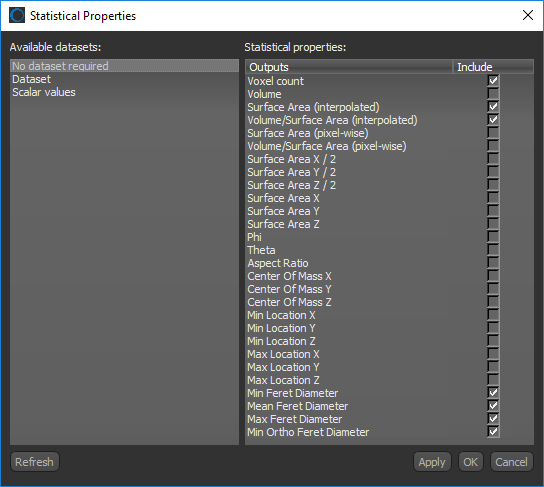
Click the Settings button at the top of the Object Analysis dialog to open the Statistical Properties dialog, shown below. You should note that some measurements are available without a dataset, while others require a dataset. You can also include scalar values previously calculated for the selected multi-ROI in your current analysis.
Statistical Properties dialog
 Available Statistical Properties
You can choose statistical properties that are related directly to the selected multi-ROI, that reference a selected dataset, or that were previously calculated in you current analysis.
| Description | |
|---|---|
|
No dataset required |
You can compute measurements, the volume, surface area, Phi and Theta angles, aspect ratio, or centers of mass of the discrete objects, or connected components, within a 3D multi-ROI. Refer to Basic Measurements for information about the available measurements. You can also compute measurements, such as the area, filled area, perimeter, solidity, and compactness, of the discrete objects, or connected components, within a 2D multi-ROI. Refer to 2D Measurements for information about the available measurements. |
|
For a selected dataset |
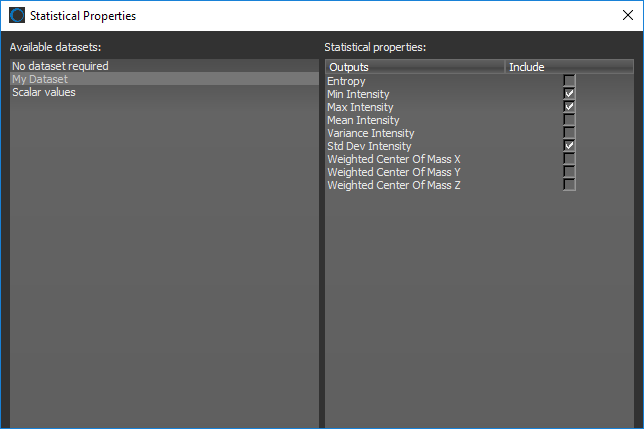
You can compute statistical properties, such as the minimum and maximum intensity values, entropy, and weighted centers of mass corresponding to the selected image data and the discrete objects, or connected components, within a multi-ROI. Refer to Basic Measurements with Dataset for information about the available measurements. Select the required dataset(s) in the Statistical Properties dialog to access the measurements shown below.
You should note that only datasets that have the same shape as the selected multi-ROI will appear in the Statistical Properties dialog. |
|
Scalar values |
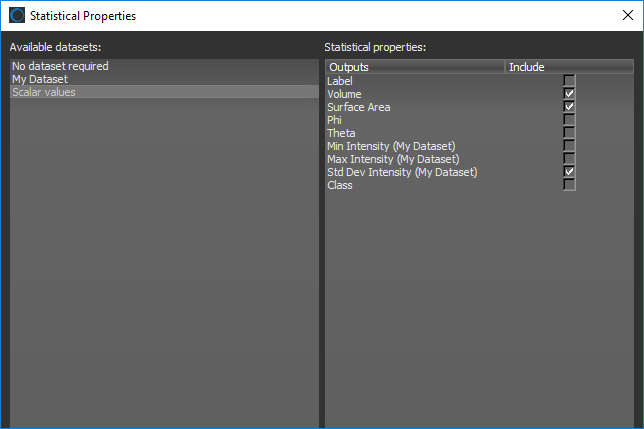
If required, you can include the scalar values that were previously calculated for the selected multi-ROI in your current analysis. Select the Scalar values option in the Statistical Properties dialog to view the available scalar values for the current multi-ROI,
|
 Selecting Statistical Properties for an Analysis
The statistical properties for an analysis — with or without a dataset — can be selected in the Statistical Properties dialog. You can also include scalar values previously calculated for the current multi-ROI.
How to Select Statistical Properties for an Analysis
- Click the Settings
 button at the top of the Object Analysis dialog.
 The Statistical Properties dialog appears onscreen.
- Do the following, as required:
- Select No dataset required in the Available datasets box and then select the attributes you want to be included in your analysis in the Statistical properties box (see Basic Measurements and 2D Measurements).
- Select the required dataset(s) in the Available datasets box and then select the attributes you want to be included in your analysis in the Statistical properties box (see Basic Measurements with Dataset).
Note Click the Refresh button to update the list of available datasets if you added new data to the Data Properties and Settings panel while the dialog was open.
- Select Scalar values in the Available datasets box and then select the statistical properties previously calculated for the multi-ROI that you want to include in your current analysis.
- Do one of the following:
- Click the Apply button to add and/or compute the selected attributes.
- Click the OK button to add and/or compute the selected attributes and close the dialog.
Generating New Object Analysis Statistics
The Object Analysis Statistics Generator lets you to quickly and easily add new parameters to your object analysis workflows.
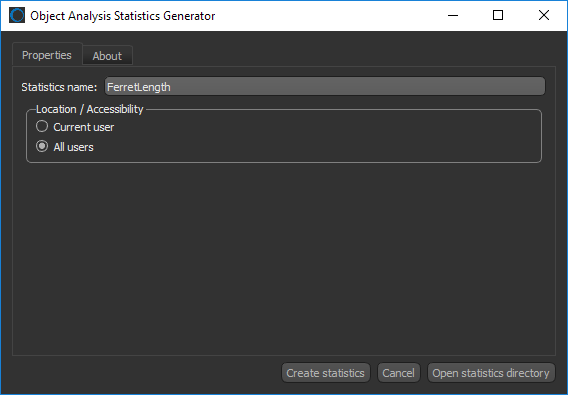
Choose Developer > Object Analysis Statistics Generator on the menu bar to open the dialog shown below.
Object Analysis Statistics Generator dialog