Workspace
An important part of the Dragonfly user interface is the concept of workspaces. A workspace is a particular layout of the tool and properties panels, which is remembered on exit and restored at startup. Once a useful layout of the available panels is chosen, Dragonfly will always look the same. You can create and save custom workspaces by docking, undocking, and removing panels (see Customizing the Workspace).
The Dragonfly workspace consists of the following major sections:
Menu bar… The Menu bar is composed of items to import data, save sessions, and access image processing and analysis tools (see Menu Bar).
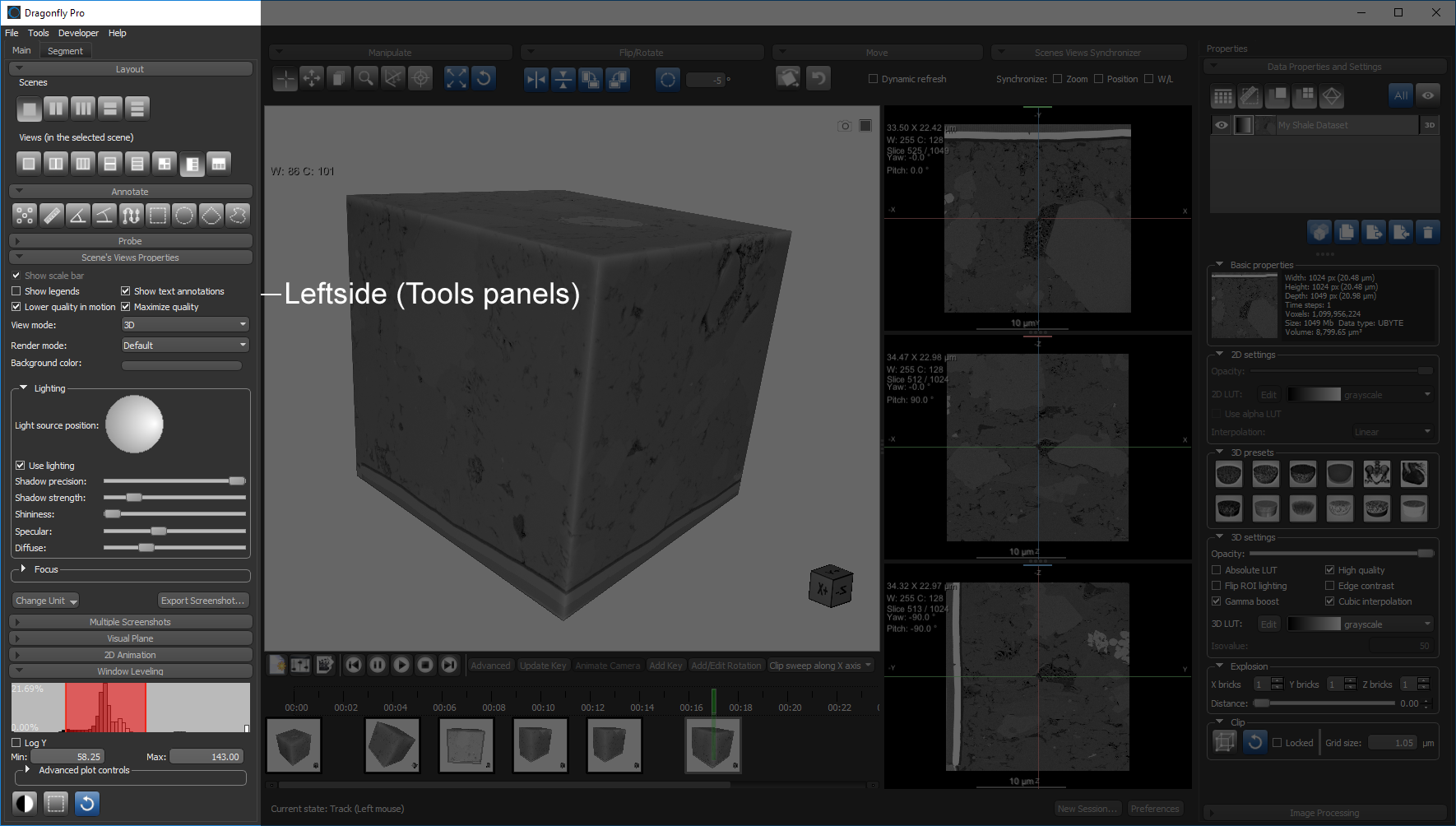
Left sidebar… The left sidebar is the default location for tools panels that are arranged on tabs, such as Main and Segment, for easy access. The Main tab on the left sidebar provides tools for choosing scene layouts and views properties, improving visualizations, making basic measurements, and other operations (see Main Tab), while the Segment tab provides tools for image segmentation tasks (see ROI Tools and ROI Painter). Additional tabs are also available on the left sidebar for specialized workflows, such as Pore Network Modeling, Hyperspectral Image Analysis, and others.
Scenes and views… The large middle section of the Dragonfly interface contains the scenes and views in which image files, meshes, regions of interest, and other objects can be displayed (see Scenes and Views).
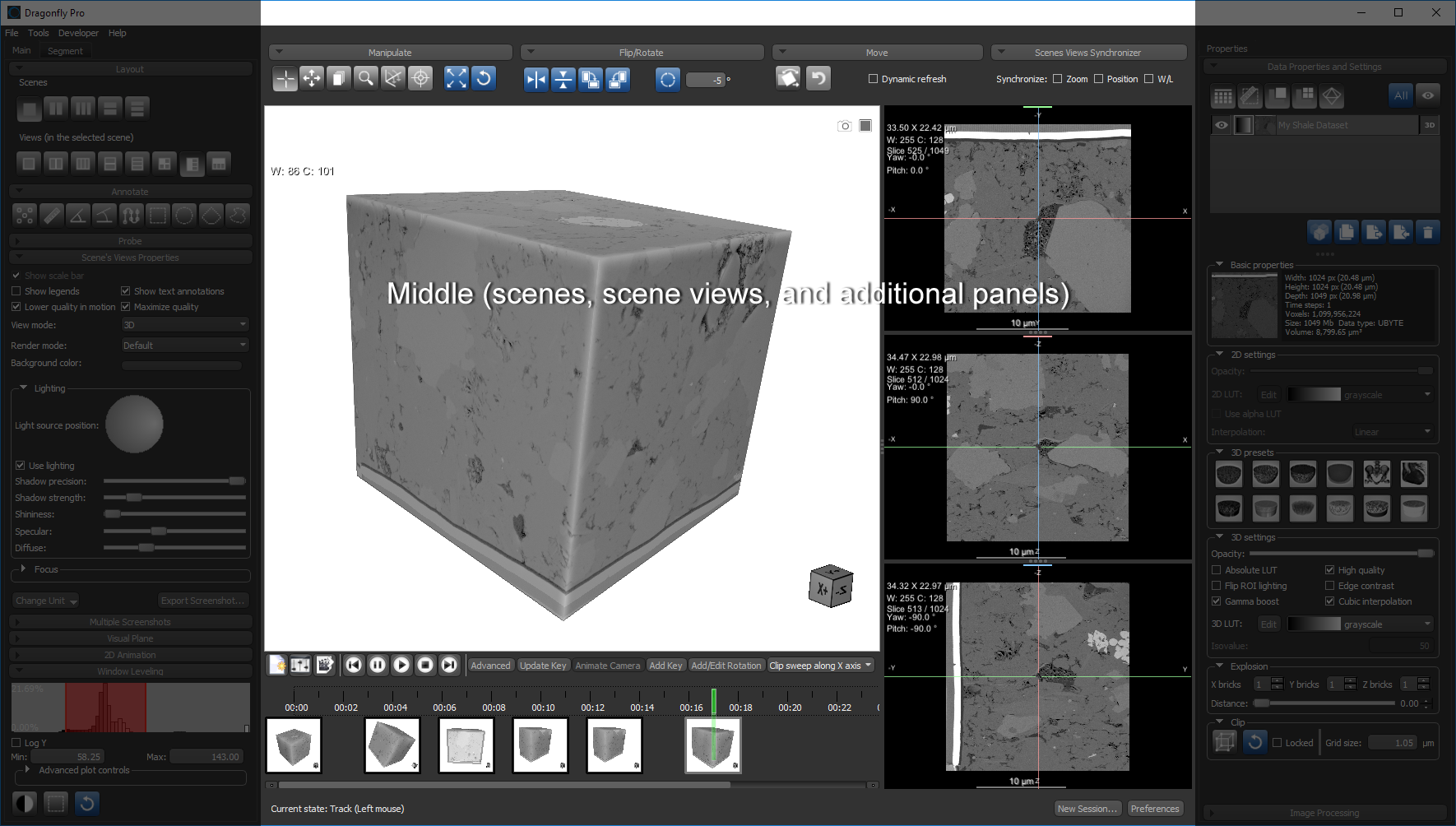
A scene can be as simple as a single view of image data or it can contain additional objects, such as annotations, regions of interest, and meshes. A scene can also be divided into multiple views, or segments, that display multi-planar reformats or a 3D view of the objects contained in the scene (see Scenes and Views).
The bottom area within the middle section is the default location for additional panels, such as the Movie Maker (see Working with the Movie Maker), the Python Console (see Python Console), and the Action Log Viewer (see Action Log Viewer).
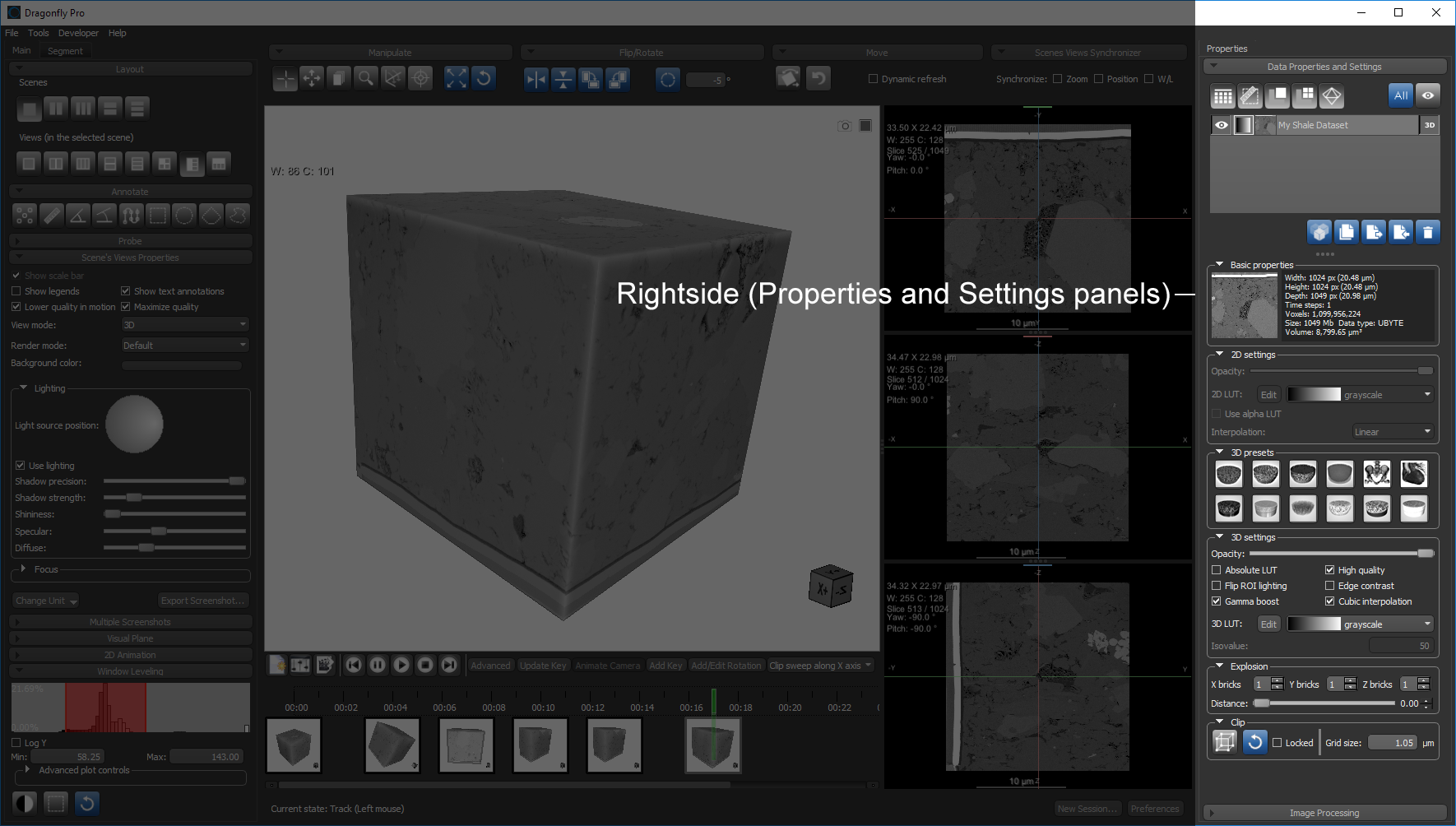
Right sidebar… The right sidebar of the Dragonfly interface is the default location for the Properties tab, which includes a Data Properties and Settings panel that provides information and settings for selected objects, as well as a Dataset Tools tab, which provides additional panels for processing objects. The right sidebar also contains the Measurement Inspector, which lets you plot the statistical properties of multi-ROI, scalar meshes, and graphs on a histogram and then highlight selected ranges in the 2D and 3D views of the object.
Status bar… The Status bar docked at the bottom of the workspace indicates the currently selected state and includes controls for creating a new session and opening the Preference dialog.

|
|
Description |
|---|---|
|
Current state |
Indicates the currently selected state. Some states are also indicated by the cursor style. |
|
New Session |
Creates a new session (see Working with Sessions for more information about saving and loading sessions). |
|
Preferences |
Open the Preferences dialog (see Setting Preferences for information about setting the application preferences). |

 PRODUCT INFORMATION
