Activating Dragonfly
You will need to unlock Dragonfly if your current license has expired, for example in cases in which a trial period has ended, or if you need to activate a new license fro an optional feature. In either case, you will need to enter an activation key(s) in the Activate Product dialog.
Choose Help > Activate Product on the menu bar to open the Activate Product dialog, shown below. You can also click Activate the Product in the License Expired message box to open the dialog.
Activate Product dialog
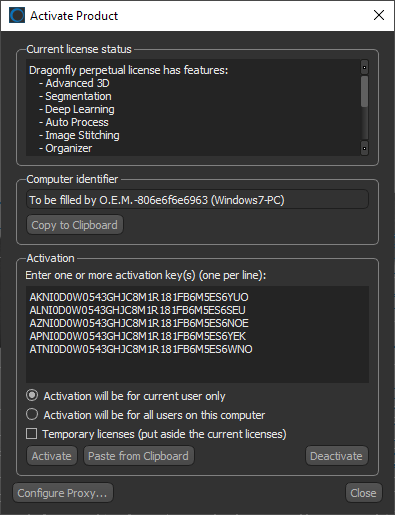
Licenses define the rights to use Dragonfly on designated equipment at a certain level of functionality (see Licenses). You should note that Dragonfly has two licensing models — node-locked and floating — which determine how licenses are configured and distributed.
Node‐locked (static) license… This type of license allows Dragonfly to run on only one particular computer (see Activating Node-Locked Licenses).
Floating (concurrent) license… This type of license allows Dragonfly to run on multiple computers that "share" a license (see Activating Floating Licenses).
 Activating Dragonfly Offline
In most cases, your system must be connected to the Internet to activate a Dragonfly license. However, customers may request an offline activation option. In this case, you will need to provide the computer identifier of the systems on which Dragonfly will be installed before you activate the product.
If required, you can open the Activate Product dialog — by choosing Help > Activate Product on the menu bar — and then copy the computer identifier to your clipboard. The option to copy the computer identifier is available in the Computer identifier box. You may then need to email it to the ORS Support Center to receive a license that can be activated offline (see Contacting the Support Center)
Activating Node-Locked Licenses
This type of license allows Dragonfly to run on only one particular computer. You should note that all trial licenses are node-locked. Unless specified otherwise, your system must be connected to the Internet to activate a commercial or non-commercial Dragonfly license.
How to Activate a Node-Locked License
- Do one of the following:
- Choose Help > Activate Product on the menu bar.
- Click Activate the Product in the License Expired message box.
This message box will appear onscreen if your Dragonfly license has already expired and the application is locked.
The Activate Product dialog appears.
- Enter or paste the activation key or keys that you received in the Activation box, circled below.

Note Use a separate line for each activation key.
- Select an activation option — Activation will be for current user only or Activation will be for all users on this computer.
Note See Activating Temporary Licenses for information about activating temporary licenses.
- If the Internet connection at your facility runs through a proxy, click Configure Proxy and then do the following in the Proxy Configuration dialog:
- Enter the fully qualified domain name of the proxy server in the Domain field. For example, my.proxy.com.
- Enter the credentials of your account or your group's account in the User and Password fields.
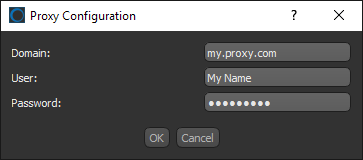
- Click OK to save the proxy configuration and close the dialog.
- Click Activate to activate the new license.
- Click Close to exit the dialog.
Activating Floating Licenses
With a floating license, Dragonfly can run on multiple computers that "share" the license. The number of systems that can run Dragonfly at the same time depends on the number of "seats" that you purchase. You can configure a floating license to use a network share or the ORS public web server as the license server. You should note that if the license server is shut down or taken offline, Dragonfly workstations will be unable to obtain a license until connectivity is restored.
Configuring Floating Licenses
When you configure a floating license, you can choose to install the Dragonfly license server on a network share or to have the license hosted on the ORS public web server. Contact the ORS Support Center for additional information about using the ORS public web server (see Contacting the Support Center).
How to Configure a Floating License
- Do one of the following on only one of the systems that will share the floating license:
- Choose Help > Activate Product on the menu bar.
- Click Activate the Product in the License Expired message box.
This message box will appear onscreen if your Dragonfly license has already expired and the application is locked.
The Activate Product dialog appears.
- Enter or paste the activation key or activation keys that you received in the Key box.
Note Use a separate line for each activation key.
- Select an activation option — Activation will be for current user only or Activation will be for all users on this computer.
- If the Internet connection at your facility runs through a proxy, click Configure Proxy and then do the following in the Proxy Configuration dialog:
- Enter the fully qualified domain name of the proxy server in the Domain field. For example, my.proxy.com.
- Enter the credentials of your account or your group's account in the User and Password fields.
- Click OK to save the proxy configuration and close the dialog.
- Click Activate.
The Floating License Configuration dialog appears.
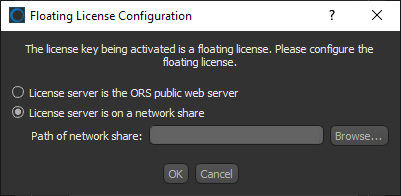
- Do one of the following:
- Choose License server is the ORS public web server if you made arrangements to use ORS' public web server as your license server.
- Choose License server is on a network share to install the license server on a network share.
You must then enter the path of the network share on which you want the license server to be installed in the Path of network share field. You must have write access to selected network share and all systems that share the floating license must have read access to the network share.
Note You can also click Browse and then select the network share in the Path of Network Share dialog.
- Click OK to configure the floating license and close the dialog.
- Click Close to exit the Activate Product dialog.
Note Refer to the topic Adding Systems to Configured Floating Licenses for information about adding systems to a configured floating license.
Adding Systems to Configured Floating Licenses
You can add additional systems to a configured floating license by copying the credentials file of the activated system to any other machine that will share the floating license. You should note that all systems that share the floating license must have read access to the network share on which the license server is installed or an Internet connection to ORS public web server.
How to Add Systems to a Configured Floating License
- If not already done, configure the floating license (see Configuring Floating Licenses).
- Create a copy of the ORSVisualCred.xml from the system on which you configured the floating license as follows:
- If you activated Dragonfly for the current user only, copy the file in the folder:
InstalledDrive:\Users\UserName\AppData\Local\ORS\Dragonflyxx, where xx is the Dragonfly version number. - If you activated Dragonfly for all users, copy the file in the folder:
InstalledDrive:\ProgramData\ORS\Dragonflyxx, where xx is the Dragonfly version number.
Note In most cases, it is best to copy the credentials file to a network share for easy access.
- If you activated Dragonfly for the current user only, copy the file in the folder:
- Install Dragonfly on all of the other systems that will share the floating license.
- Replace the ORSVisualCred.xml file on each system with the one you copied from the configured system as follows:
- If you are activating Dragonfly for the current user only, copy the file to the folder:
InstalledDrive:\Users\UserName\AppData\Local\ORS\Dragonflyxx, where xx is the Dragonfly version number. - If you are activating Dragonfly for all users, copy the file to the folder:
InstalledDrive:\ProgramData\ORS\Dragonflyxx, where xx is the Dragonfly version number.
Note Each time an instance of Dragonfly is launched, the license server will check if a "seat" is available.
- If you are activating Dragonfly for the current user only, copy the file to the folder:
Activating Temporary Licenses
If some cases, you may need to activate a temporary license. For example, in cases in which you want to evaluate features that are not included with your current license, such as Bone Analysis.
Whenever you activate a temporary license, your current license will suspended until the temporary one expires. Afterward, your current license will be automatically reinstated.
How to Activate a Temporary License
- Do one of the following:
- Choose Help > Activate Product on the menu bar.
- Click Activate the Product in the License Expired message box.
This message box will appear onscreen if your Dragonfly license has already expired and the application is locked.
The Activate Product dialog appears.
- Enter or paste the activation key or keys you received in the Key box, circled below.
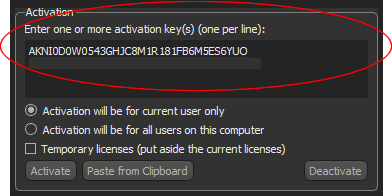
Note Use a separate line for each activation key.
Note Do NOT change the current activation option — Activation will be for current user only or Activation will be for all users on this computer.
- Check the Temporary licenses (put aside the current licenses) option.
- Click Activate to activate the temporary license(s) and put aside the current license.
- Click Close to exit the dialog.


