Autosave Preferences
The Autosave options help reduce the risk or impact of data loss in case of a software crash or freeze. Autosave can be configured for predetermined intervals.
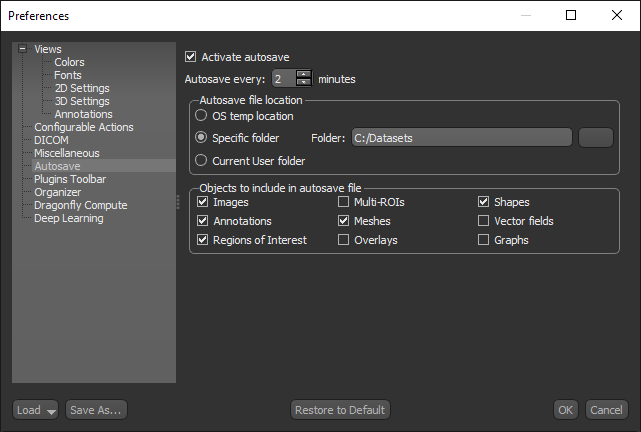
Choose Autosave in the Preferences dialog to open the Autosave preferences, shown below.
Autosave preferences
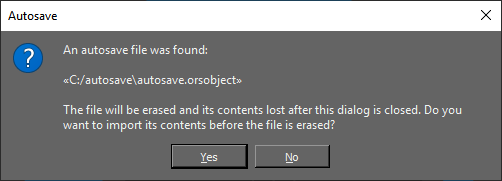
Whenever Autosave is activated, a backup ORSObject file (autosave.orsobject) is created in the selected file location. Following a software crash, you will have the option to load this file and restore all of the objects included in this file. Simply click Yes in the message box that appears on screen, shown below, when you restart Dragonfly.
| Description | |
|---|---|
| Activate autosave | If checked, the objects selected to be included in the autosave file will be saved at the set interval. |
| Autosave every | Lets you set the frequency for autosave. |
| Autosave file location |
Lets you choose a location for the autosave file.
OS temp location… If selected, autosaved files will be saved in the operating system's default temporary folder or temporary directory. Specific folder… Lets you choose a specific folder for autosaved files. Current user folder… if selected, autosaved files will be saved in the current user's folder. |
| Objects to include in autosave file | Lets you choose which objects will be included in the autosave file — datasets, annotations, regions of interest, multi-ROIs, and so on. |