Dimension Unit Manager
This utility lets you create new units, as well as calibration standards, for intensity scale calibrations.
Choose Utilities > Dimension Unit Manager on the menu bar to open the Dimension Unit Manager dialog, shown below.
Dimension Unit Manager dialog
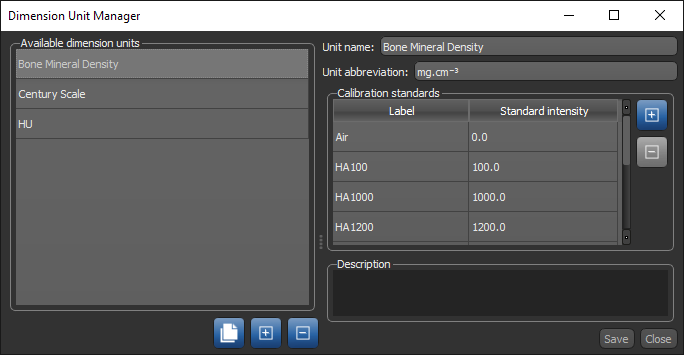
 Creating New Dimension Units
You can create new dimension units for either assigning to image data or for performing intensity-scale calibrations.
Do the following to create a new dimension unit:
-
Choose Utilities > Dimension Unit Manager on the menu bar to open the Dimension Unit Manager dialog.
-
Click the '+' button on the bottom left to create a new unit.
-
Enter a name for the new unit and a unit abbreviation in the appropriate fields.
-
Click Save to save your new dimension unit.
Creating Calibration Standards
For intensity-scale calibrations, you will need to create a dimension unit with standard intensities for each phase or tissue type.
Do the following to create a calibration standard:
-
Create a new dimension unit in the Dimension Unit Manager dialog, if required (see Creating New Dimension Units).
-
Click the '+' button in the Calibration standards box to add a label.

-
Enter a name for the new label and the standard intensity that you want to associate with the label.

Note You can use the Probe tool to find the intensity values of different materials or tissue in a dataset (see Using the Probe Tools).
-
Add additional labels and their associated standard intensities, as required.
-
Click Save.
Note Refer to the topic Intensity Scale Calibration for information about calibrating image data.
