Adding Image Overlays
You can add image overlays — such as company or institution logos, as well as graphs and images captured from Dragonfly to a scene view to further describe or identify an image.
Image overlays can be positioned anywhere inside a scene view and can be resized for the best fit. In addition, opacity is adjustable in the Overlay editor (see Image Overlay Editor).
- Select the scene view to which you want to add the image overlay.
- Click the Image Overlay
 button on the Overlays panel.
 - Choose the required image in the Import an Image from File dialog.
- Click the Open button.
The image appears in the selected view and is listed in the Data Properties and Settings panel.
- Do the following to move the image:
- Make sure that the Edit geometry and position option is checked in the Overlay editor box.
- Drag from the center of the overlay box to reposition it, as shown below.

Note After your adjustments are complete, you can lock the overlay by unchecking the Edit geometry and position option.
- Do the following to resize the image:
- Make sure that the Edit geometry and position option is checked in the Overlay editor box.
- Check the Keep aspect ratio option, recommended. If checked, the aspect ratio of the original image will be maintained when the image overlay is resized.
- Drag an edge or corner of the overlay box to resize it, as shown below.


Note After your adjustments are complete, you can lock the overlay by unchecking the Edit geometry and position option.
- Adjust the opacity of the image, as required.
- Add a background and/or border, if required (see Image Overlay Editor).
- Save the overlay, if required (see Exporting Objects).
You should note that text overlays can also be saved in session files (see Working with Sessions).
 Image Overlay Editor
The options for editing image overlays are available in the Overlay Editor, shown below.
Overlay editor properties
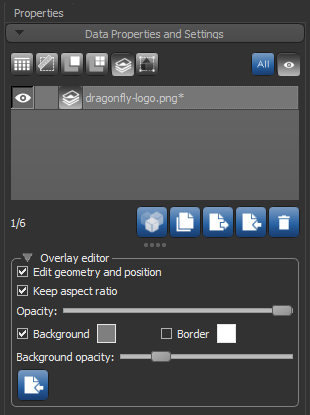
| Description | |
|---|---|
| Edit geometry and position | If checked, the text overlay box will be unlocked and can be moved and resized. |
| Keep aspect ratio | If checked, the aspect ratio will be maintained when the image overlay is resized. |
| Opacity |
Lets you set the opacity of the image.
|
| Background |
If checked, a background will be added to the overlay. Additional settings for the background include:
Background color box… Lets you select a background color (see Choosing Colors). Background opacity slider… Lets you set the opacity of the background. |
| Border |
If checked, a border will appear around the overlay.
Border color box… Lets you select a border color (see Choosing Colors). |

|
Lets you change the source file of the overlay. You can choose a new image in the Import an Image from File dialog. |
