Importing Objects
You can import all of the objects or selected objects that were exported in the Dragonfly Object file (*.ORSObject extension) format. Dragonfly Object files are proprietary binary formatted files in which data is written sequentially and XML (Extensible Markup Language) is appended after the binary data. These files can contain multiple objects such as image data, regions of interest, and annotations.
You can also import objects that were saved in a session file (*.ORSSession extension). See Importing Objects from Session Files for more information.
How to Import Objects
- Do one of the following to import objects contained in an Dragonfly Object file or files:
- Click the Import
 icon at the bottom of the list on the Data Properties and Settings panel.
 - Right-click inside the list box on the Data Properties and Settings panel and then choose Import Object(s) in the pop-up menu.
- Choose File > Import Object(s) on the menu bar.
- Click the Import
- Choose the required file(s) in the Import Object(s) dialog.
- Select all of the objects that you want to import in the Select Objects dialog.
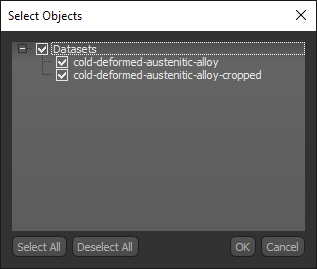
- Click the OK button.
The selected object(s) contained in the file are added to the Data Properties and Settings panel.
