Shading Compensation Filters
Undesirable shading across the field-of-view, which can be a prominent phenomenon in microscopy and may occur due to non-uniform illumination, inhomogeneous detector sensitivity, or non-specific sample staining, can be largely eliminated with the shading compensation filters. Eliminating shading is frequently necessary for subsequent processing, especially when quantification is the final goal.
A good indication that a dataset requires shading correction can be provided by the intensity profile of rulers drawn across the image. Eliminating shading may be required if linear regression, as shown below, is apparent (see Profiling Intensity).
Intensity profile before (in red) and after shading correction (in blue)

These filters can be used to correct undesirable shading across the field-of-view, which can be a prominent phenomenon in microscopy and may occur due to non-uniform illumination, inhomogeneous detector sensitivity, or non-specific sample staining,
| What it does | Options | |
|---|---|---|
| Histogram Balancing | Spreads out the most frequent intensity values in an image. The equalized image has a roughly linear cumulative distribution function. | - |
| Local Entropy Minimization* | Reduces randomness to correct non-uniform illumination and counteract noise. This is consistent with several observations, mainly that non-degraded images tend to have very low entropy relative to their degraded counterparts and degradations reduce the predictability of pixel values from the values in their neighborhoods.
Note Although entropy reduction typically affects random degradations substantially more than the signal, continued entropy reduction might also eliminate some of the normal variability in the original image. |
Node count
Iteration count Compensation |
| Manual RBF* | Uses a radial basis function to correct image shading caused by non-uniform illumination. You should note that the Manual RBF filter requires at least three(3) sampling points in representative regions (see Adding and Editing Sampling Points for Manual RBF Filtering). | Kernel size
Compensation Sampling points (at least 3) |
| Polynomial | Uses a third degree polynomial to correct uneven shading. | Polynomial degree
Compensation |
* Available only for Dragonfly 3D World ZEISS edition. Contact Comet Technologies Canada Inc. for information about the availability of this version of Dragonfly.
 Adding and Editing Sampling Points for Manual RBF Filtering
The Manual RBF filter requires at least three(3) sampling points in representative regions.
- Adjust the zoom factor, pan position, and window level of your image, if required.
- Click the Points
 tool, if it is not already selected.
 - Click on the image to add sampling points, as shown below.
Note You can add as many points as required to representative regions on the image.
- Click the Compute Selected Preview button to view the effect of filtering on the selected image slice.
- If required, reposition, add, or remove sampling and then evaluate the computed preview.
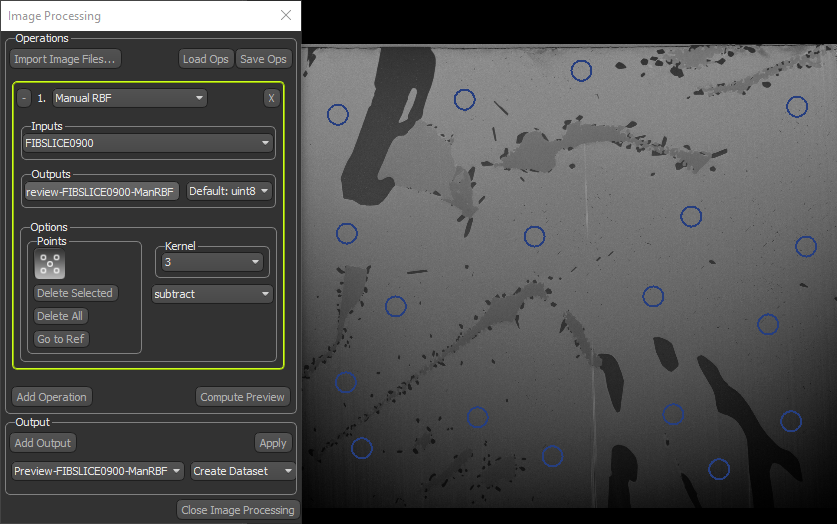
- Select a sampling point and then drag to reposition it.
- Select a sampling point and then click Delete Selected to remove it.
- Click the Delete All button to remove all sampling points.
Configured Actions for the RBF Filter
A number of configured actions and keyboard shortcuts are available for adding and editing sampling points. The default settings for these actions are listed in the following table.
| Action | State | Key | Mouse |
|---|---|---|---|
| Create points for RBF filter | OrsHandlePointForRBFFilter | - | Left mouse |
| Edit points for RBF filter | OrsHandlePointForFilterEdit | - | Left mouse |
