Reconstructing Parallel-Beam Projections
Dragonfly's CT Reconstruction module includes the bench-marked algorithms for reconstructing 2D parallel-beam projection data into 3D volumes, as well as iterative methods and pre-processing to improve image quality.
Choose Workflows > CT Reconstruction on the menu bar to open the CT Reconstruction dialog, shown below. Then choose Parallel Beam as the beam type to access the acquisition parameters, reconstruction engines, and pre-processing options for parallel-beam projections.
CT Reconstruction dialog for parallel-beam projections
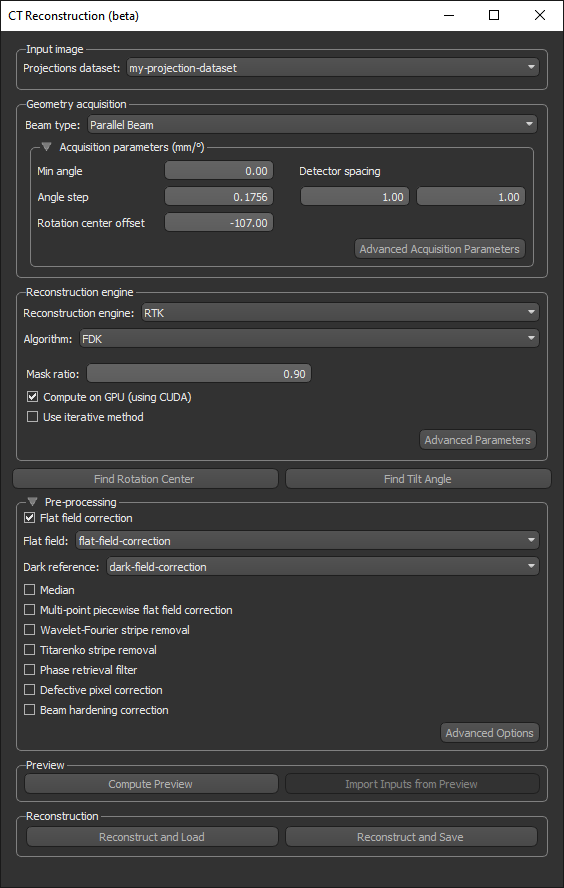
 Settings and Parameters for Parallel-Beam Reconstructions
The following reconstruction engines, settings, and pre-processing options are available in Dragonfly's CT Reconstruction module for reconstructing parallel-beam projection data.
Input Image
The options in the Input image box, shown below, let you choose the projection dataset to reconstruct.

Projections dataset… Lets you choose the projection dataset to reconstruct.
Geometry Acquisition
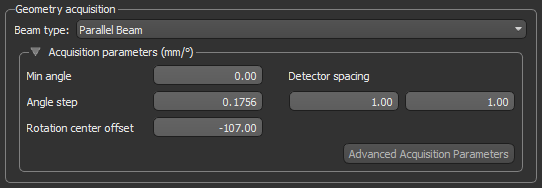
The options in the Geometry Acquisition box, shown below, let you choose a beam type and enter the acquisition parameters.
Geometry acquisition parameters
| Item | Description |
|---|---|
| Beam type | Lets you choose the beam type — Cone Beam or Parallel Beam — for tomographic data processing and image reconstruction. |
| Acquisition parameters | |
| Min angle | Indicates the minimum angle, in the indicated unit. |
| Angle step | Indicates the angle step, in the indicated unit. |
| Rotation center offset | Indicates the selected source to detector distance, in pixels. |
| Detector spacing | Is the detector spacing along the X and Y axes, in the indicated unit. |
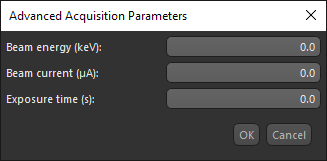
| Advanced Acquisition Parameters |
Opens the Advance Acquisition Parameters dialog, shown below. You can enter beam energy, beam current, and exposure time.
Note The advanced acquisition parameters are not used in this version of Dragonfly. |
 Reconstruction Engine
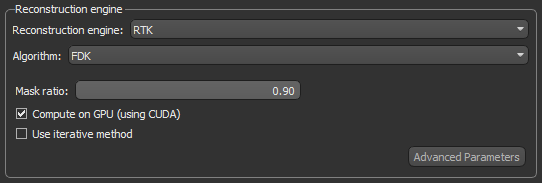
The options in the Reconstruction engine box let you choose a reconstruction engine and algorithm, as well as other options.
Reconstruction engine
| Description | |
|---|---|
| Reconstruction engine |
Lets you choose a reconstruction engine — RTK or TomoPy.
RTK… Is an open-source software for fast circular cone-beam CT reconstruction based on the Insight Toolkit (ITK). Go to https://www.openrtk.org/ for more information about RTK. TomoPy… Is an open-source Python package for tomographic data processing and image reconstruction. Go to https://tomopy.readthedocs.io/en/stable/ for more information about TomoPy. |
| Options and settings for RTK | |
| Algorithm |
Lets you choose a reconstruction algorithm.
FDK… The bench-marked Feldkamp-David-Kress (FDK) algorithm is a filtered back-projection algorithm that applies a filter in the frequency domain before back-projecting the projection images. Reference |
| Mask ratio | The ratio between the FOV of the camera and the size of object, which is used to generate the mask. |
| Compute on GPU (using CUDA) | Lets you accelerate time-consuming reconstructions by computing on GPU. You should note that computing on GPU is required when using iterative methods for the FDK algorithm. |
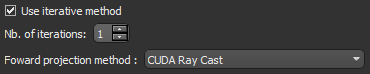
| Use iterative method |
Lets you choose a forward projection method — CUDA Ray Cast or Joseph — for iteration and the number of iterations.
|
| Advanced Parameters |
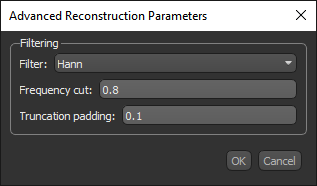
Opens the Advanced Reconstruction Parameters dialog, in which you can apply filtering.
Filtering… Lets you choose a filter and the filter settings for the reconstruction (see Filters). The quality of reconstructed images can be limited by several factors that result in poor spatial resolution, low contrast, and high noise levels. However, filtering can compensate for loss of detail in an image while reducing high-frequency noise. The filter chosen for a given image reconstruction task is mainly a compromise between the reduction of noise and the preservation of detail or contrast of the reproduced image. You should note that the Ramlak and Shepp-Logan filters are high pass filters that retain edges, while the Cosine, Hamming, and Hann filters are band pass filters. They are usually used to smooth images and remove extra edges from the image. Frequency cut… Lets you set cut-off frequency of the selected filter. A value of '0' will disable the filter. The value of the cut-off frequency determines how the filter will affect both image noise and resolution. A high cut-off frequency will improve the spatial resolution and detail, but the image will remain noisy. A low cut-off frequency will increase smoothing, but will degrade image contrast in the final reconstruction. Truncation padding… This parameter sets the amount of padding — '0' means no padding, '0.5' means padding with 50% more data, while the max value of '1' results in 100% padding. |
| Options and settings for TomoPy | |
| Algorithm | Dragonfly provides two algorithms for tomographic reconstruction of parallel-beam projections with TomoPy.
art… The algebraic reconstruction technique (art) is an iterative reconstruction technique that starts with an initial estimate of the image. Then a set of projection data is estimated from the initial estimate using a mathematical process called forward projection. The resulting projections are compared with the recorded projections and the differences between the two are used to update the estimated image. The iterative process is repeated until the differences between the calculated and measured data are smaller than a specified preselected value. Reference gridrec… is a Fourier grid reconstruction algorithm. References M.L. Rivers. TomoRecon: high-speed tomography reconstruction on workstations using multi-threading. Proc. SPIE 8506, Developments in X-Ray Tomography VIII, 85060U, 2012 (doi: 10.1117/12.930022). |
| Mask ratio | The ratio between the FOV of the camera and the size of object, which is used to generate the mask. |
| Filter |
Lets you choose a filter for the reconstruction whenever 'gridrec' is selected as the algorithm (see Filters).
The quality of reconstructed images can be limited by several factors that result in poor spatial resolution, low contrast, and high noise levels. However, filtering can compensate for loss of detail in an image while reducing high-frequency noise. The filter chosen for a given image reconstruction task is mainly a compromise between the reduction of noise and the preservation of detail or contrast of the reproduced image. You should note that the Ramlak and Shepp filters are high pass filters that retain edges, while the Cosine, Hamming, and Hann filters are band pass filters. They are usually used to smooth images and remove extra edges from the image. |
The following filters, which are applied to data in the frequency domain, are available in the Filter drop-down menu. You must set 'Frequency cut' to a value greater than 0 to enable filtering.
| Filter | Description |
|---|---|
| Butterworth* | The Butterworth filter is a low-pass filter and is characterized by two parameters: the critical frequency which is the point at which the filter starts its roll off to zero and the order or power. Because of the ability of changing not only the critical frequency but also the steepness of the roll-off, the Butterworth filter can both smooth noise and preserve image resolution. |
| Cosine | The Cosine filter is obtained by multiplying the Ramlak filter by a cosine function. The advantage of the Cosine filter is that it reduces image noise. A disadvantage is that it does not preserve edges in the image. |
| Hamming | The low pass Hamming filter provides a high degree of smoothing. The only difference with the Hann filter is on the amplitude at the cut-off frequency. |
| Hann | The Hann ('Hanning') filter is a relatively simple low-pass filter that is very effective in reducing image noise. However, it often does not preserve edges well. |
| Parzen* | The Parzen filter is another example of a low pass filter. |
| Ramlak | The Ramlak filter is a high−pass filter that blocks out low frequencies, which can cause blurring. If there are areas in the image where the signal changes rapidly a high−pass filter sharpens the edges and gives better contrast. A disadvantage of Ramlak and other high−pass filters is that they let pass high frequencies and as a consequence also noise. |
| Shepp-Logan | The Shepp-Logan filter belongs to the family of low pass filters and produces the least smoothing and has the highest resolution. |
* Available only for TomoPy and whenever 'gridrec' is selected as the algorithm.
Find Rotation Center
Opens the CT Rotation Finder dialog, in which you can choose from a number of algorithms to find the rotation center offset for reconstructing cone-beam and parallel-beam projections (see CT Rotation Finder).
Find Tilt Angle
Opens the CT Rotation Finder dialog, in which you can find the optimal tilt angle, as well as the rotation center offset (see CT Tilt Angle Finder).
Pre-Processing
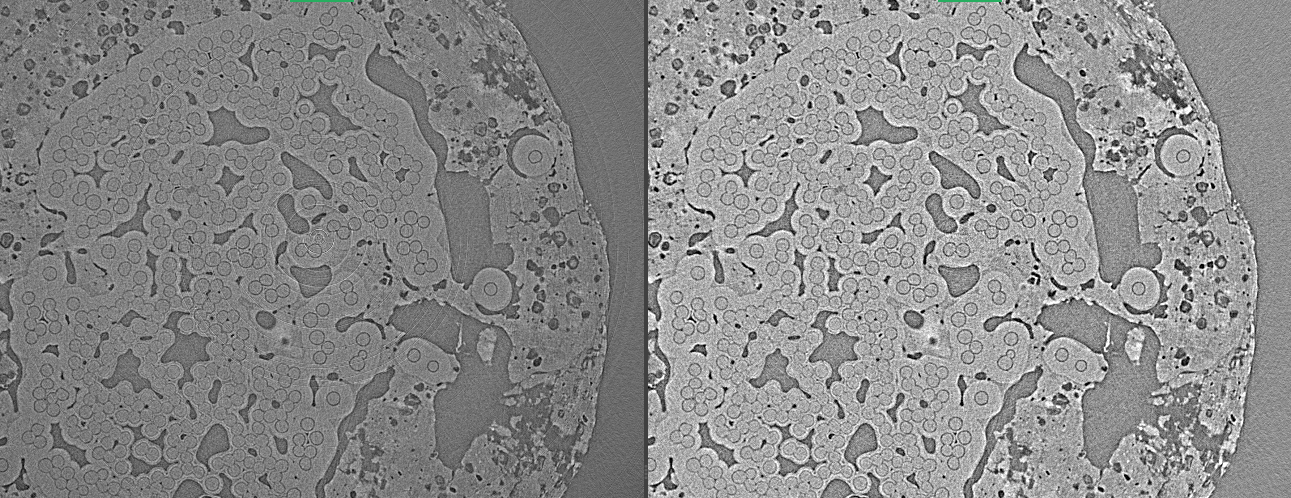
The pre-processing options let you choose to apply flat field corrections, median filtering, stripe removal, and other corrections to improve reconstructed image quality. Examples of filtering to remove ring artifacts are shown in the images below.
No pre-processing (left) and with flat field correction with median filtering (right)
Note Data courtesy of Aly Badran from the University of Colorado.
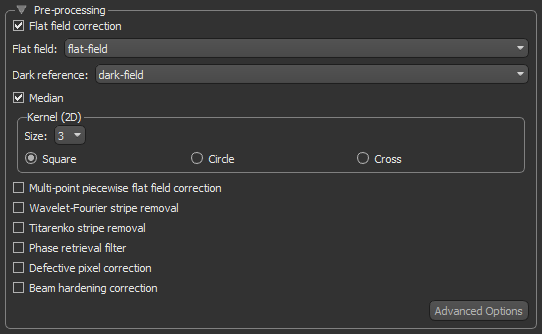
The following pre-processing options are available to improve reconstructed image quality.
Pre-processing options
| Option | Description |
|---|---|
| Flat field correction |
Applies a linear calibration with flat field and dark field images to normalize projection data and remove ring artifacts. These artifacts can be caused by a variation in the pixel-to-pixel sensitivity of the detector and can also occur as a function of acquisition time. These artifacts can be seen in the sinogram of the sample.
Flat field… Lets you select the flat-field image taken with the X-ray beam turned on, but without the sample. Fixed pattern noise is removed with the assumption that the detector response did not change over the CT scan time. Dark reference… Lets you select the dark-field image taken before the X-ray beam was turned on. |
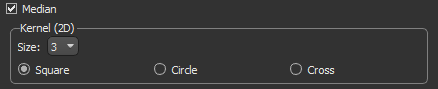
| Median |
Applies median filtering, at a selected kernel size and shape, to help smooth noisy data.
Note Median filtering is often used in conjunction with flat field correction, which normalizes projection data and removes ring artifacts. You should also note that median filtering not only removes noise, but can also remove image features. You need to be careful with selecting the kernel size. |
| Multi-point piecewise flat field correction |
Similar to flat field correction, but uses a multi-point image ('gain-stack') taken by changing the current at a constant step. The 'gain-stack' usually includes a flat field image and dark reference, as well as multiple steps between the flat field image and dark reference, to correct non-uniform backgrounds.
|
| Wavelet-Fourier stripe removal |
Removes horizontal and vertical stripes from the sinogram using the wavelet-Fourier based method.
Level… Lets you set the number of discrete wavelet transform levels. Sigma… Lets you set the damping factor in Fourier space. Wavelet… Lets you select a wavelet filter — 'db5', 'haar', or 'sym5'. In most cases, the default wavelet 'db5' provides the best results. Note In cases in which stripes are narrow, you can set 'Level' and 'Sigma' to low values. You should increase these parameters for broader or distorted stripes. Reference Münch B, Trtik P, Marone F, and Stampanoni M. Stripe and ring artifact removal with combined wavelet–Fourier filtering. Optics Express, 17(10):8567–8591, 2009 (https://opg.optica.org/oe/fulltext.cfm?uri=oe-17-10-8567&id=179485). |
| Titarenko stripe removal |
Removes horizontal stripes and ring artifacts from the sinogram using Titarenko’s approach.
The adjustable parameters available for the Titarenko stripe removal filter include 'Number of blocks' and 'Alpha (damping factor)'. You may need to try different settings to achieve the best results. Reference Miqueles EX, Rinkel J, O'Dowd F, and Bermúdez JSV. Generalized Titarenko's algorithm for ring artifacts reduction. Journal of Synchrotron Radiation, 21(6):1333–1346, 2014 (https://pubmed.ncbi.nlm.nih.gov/25343803/). |
| Phase retrieval filter |
Used mostly for biological samples to perform a single-step phase retrieval from phase-contrasted environments.
Detector pixel size… Is the detector pixel size, which should be the same as detector spacing. The unit is the same as shown in the Geometry acquisition box. Propagation distance… Is the distance between the object and the detector. The unit is the same as shown in the Geometry acquisition box. Energy… Is the beam energy, in keV. Reference Paganin D, Mayo SC, Gureyev TE, Miller PR, and Wilkins SW. Simultaneous phase and amplitude extract from a single defocused image of a homogeneous object. Journal of Microscopy, 206(1):33-40, 2002 (https://pubmed.ncbi.nlm.nih.gov/12000561/). |
| Defective pixel correction |
Corrects defective pixels identified by a defective pixel map by averaging neighboring pixels. Defective pixels can sometimes be seen as straight vertical lines on the sinogram. You should note that this filter is often applied in conjunction with multi-point piecewise flat field correction.
Parse defective pixel map from… Lets you choose a North Star Imaging defective pixel map (if your data was acquired with a North Star CT system) or an image or region of interest defective pixel map. You can create a defective pixel map from the sinogram by applying a threshold to select and label defective pixels (see Creating Threshold Segmentations). Defective pixels are typically low intensity. Defective pixel file… Lets you choose the required file. |
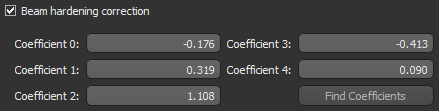
| Beam hardening correction |
Corrects beam hardening effects using coefficients of the projection. Each coefficient is to the power of 'x', where x is the coefficient number. For example, Coefficient 1 is to the power of 1, which is the projection itself.
Note The option to automatically find the coefficients in not available in this version of Dragonfly. |
| CLAHE |
A variant of adaptive histogram equalization, contrast limited adaptive histogram equalization (CLAHE) improves local contrast and enhances the definitions of edges in each region of an image (see Contrast Adjustment Filters).
Selectable parameters include 'kernel size', 'clip', and 'number of bins'. |
| Advanced Options |
Opens the Advanced Pre-Preprocessing Filters dialog, shown below.
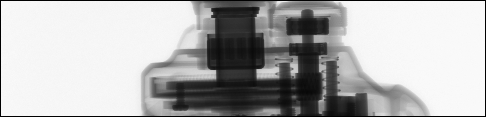
When Log is checked, the intensity of the projection will be inverted for filtering. This default setting is required when the background is bright and the scanned object is dark, as shown below.
If the background of the projection is already dark and the scanned object is bright, then you should uncheck Log. |







 Preview
Lets you compute previews at the selected settings, as well as import the settings from a selected preview.
Preview options

Compute Preview… Click this button to generate a one-slice preview using the selected settings.
Import Inputs from Preview… Click this button to open the Import from Preview dialog. You can select any preview to reload the selected settings.
Reconstruction
Lets you reconstruct projections at the selected settings.
Reconstruction options

Reconstruct and Load… Click this button to reconstruct the selected dataset and then load the computed reconstruction into Dragonfly.
Reconstruct and Save… Click this button to reconstruct and save the selected dataset. You may need to do this if your system memory is not sufficient for loading the reconstructed dataset.
How to Reconstruct a Parallel-Beam Projection
Refer to the following instructions for information about reconstructing parallel-beam projections.
- Load your parallel-beam projection images (see Importing Image Files).
You will also need to load your flat field correction images or 'gain-stack' images for multi-point piecewise flat field correction if you plan to apply these pre-processing corrections to improve image quality (see Pre-Processing).
- Make sure that the projection image stack is oriented in the X-Y plane, as shown below.
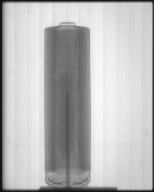
Note If required, you can invert the X, Y, or Z axis or apply an axis transformation to re-orient the dataset (see Inverting Datasets).
- Choose Workflows > CT Reconstruction on the menu bar.
The CT Reconstruction dialog appears.
- Select your projection dataset in the Projections dataset drop-down menu.
- Select Parallel Beam in the Beam type drop-down menu.
The acquisition parameters, reconstruction engine options, and pre-processing options for parallel-beam projection images appear in the dialog.
- Enter the required acquisition parameters (see Geometry Acquisition).
- Choose a reconstruction engine, algorithm, and other required parameters in the Reconstruction engine box (see Reconstruction Engine).
- If required, find the rotation center offset and/or tilt angle (see CT Rotation Finder and CT Tilt Angle Finder).
- Choose the required pre-processing corrections (see Pre-Processing).
Note By default, Log is selected in the Advanced Pre-Processing Filters dialog, as shown below. This setting is required whenever the background of the projection images is bright and the scanned object is dark.
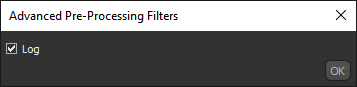
To change this setting, click the Advanced Options button in the Pre-Processing box and then uncheck Log.
- Click the Compute Preview button and then review of results of the one-slice reconstruction.
- If the result is acceptable, continue to the next step.
- If the result is unacceptable, modify the reconstruction parameters and/or pre-processing options and then generate another preview.
Note You can load the settings of the best preview by clicking the Import Inputs from Preview button and then selecting the best preview in the Import from Preview dialog.
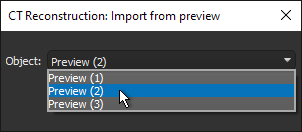
- Do one of the following:
- Click the Reconstruct and Load button to compute and load the reconstructed dataset.
Note If this option exceeds your system's memory, you can choose to reconstruct and save or you can crop the projection dataset (see Cropping Datasets). If you choose to crop the dataset, you must remove an equal number of slices from the top and bottom of the projection (Y-axis). After cropping, you can choose the new dataset in the Projections dataset drop-down menu.
- Click the Reconstruct and Save button to compute and save the reconstruction as multiple TIFF files. You will need to choose a location for the reconstructed dataset in the Export Reconstruction to File dialog.
- Click the Reconstruct and Load button to compute and load the reconstructed dataset.

