Applying Arithmetic Operations
Arithmetic operations can be applied to the scalar data that is available in the Analyze and Classify Measurements dialog.
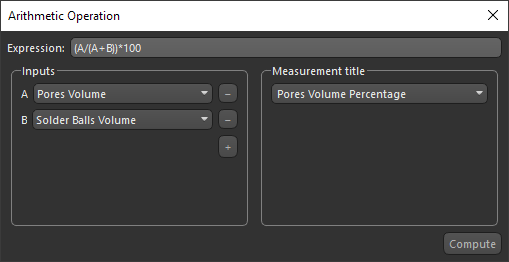
In the Arithmetic Operation dialog, shown below, you can select a number of inputs and then write an expression to produce an output. The convention for identifying each input within an expression is simply 'A' for the first input, 'B' for the second input, 'C' for the third, and so on. For example, to get the sum of the first input and the second input, the expression would be 'A+B'. More complex expressions can also be written, such as 'D*[(A+B)+(2*A-1.8*B)]/C'. You can also include NumPy functionalities in an expression. For example, in the expression 'np.sin(A)+np.cos(B)', 'np.sin' and 'np.cos' refer to the 'sine' and 'cosine' functions of NumPy. NumPy is the fundamental package for scientific computing in Python.
Arithmetic Operation dialog
-
Select the required table.
Note Refer to the topic Importing Scalar Data for information about importing scalar data and Adding New Measurements for information about computing new measurements.
-
Click the Arithmetic
 button.
The Arithmetic Operation dialog appears.
-
Select the required input(s) in the drop-down menu(s).
If required, click the '+' button to add an input. Click the '-' button to remove an input.
Note The convention for identifying each input is simply 'A' for the first input, 'B' for the second input, 'C' for the third, and so on.
-
Write an expression to produce the required output.
Note For example, to get the sum of the first input and the second input, the expression would be 'A+B'. More complex expressions can also be written, such as 'D*[(A+B)+(2*A-1.8*B)]/C'. You can also include NumPy functionalities in an expression. For example, in the expression 'np.sin(A)+np.cos(B)'.
-
Select a scalar slot for the output in the Measurement title drop-down menu.
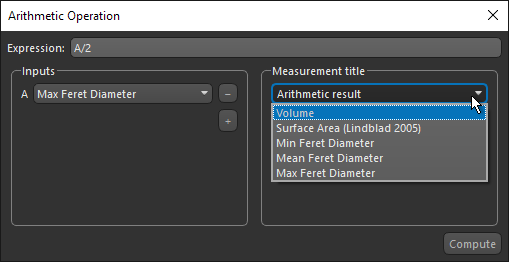
To create a new slot with the output of the operation, choose 'Arithmetic result'. In this case, you can edit the title of the measurement.
You can also overwrite any of the available slots.
-
Click Compute.
 Assigning Units to Scalar Data
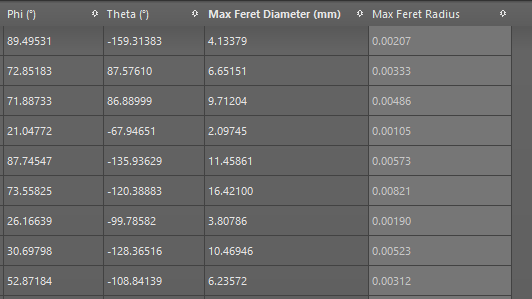
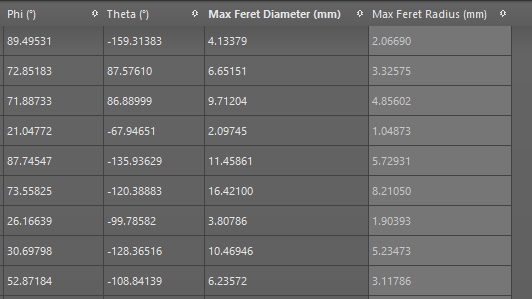
The results of arithmetic operations are always set to 'generic continuous', which means that no measurement units are assigned. If required, you can assign a unit to the computed values. For example, if your arithmetic operation only included length measurements, you could assign the computed values to meters, which is the default unit for storing length measurements. The default unit will then be converted to screen units in Dragonfly.
Applied arithmetic operation to compute radius (left) and after unit is assigned (right)
-
Right-click the object that includes the scalar data you imported in the Data Properties and Settings panel and choose Assign Unit to Scalar Values in the pop-up menu.
-
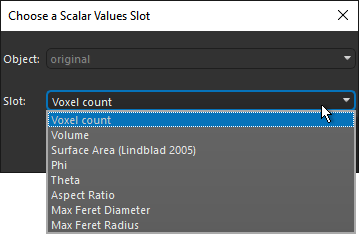
Choose the scalar slot that you want to assign a unit to in the Choose a Scalar Values Slot dialog.
-
Click OK.
-
Choose the unit type that corresponds to the scalar slot that you want to assign a unit to in the Choose Unit Type dialog.
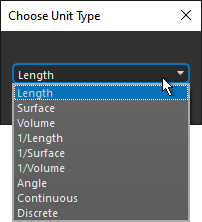
For example, if the output of the applied arithmetic operation is the sum of two length measurements, choose 'Length' as the unit type. Likewise , if the output of the applied arithmetic operation is an area, choose 'Surface' as the unit type.
-
Click OK.
-
Choose the required unit in the Choose Unit dialog, as described below.
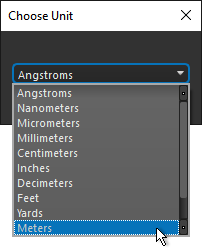
You need to the select the following units for these unit types:
Length… You need to select 'Meters'.
Surface… You need to select 'Square meters'.
Volume… You need to select 'Cubic meters'.
Angle… You need to select 'Radian'. -
Click OK.
The values in the column that correspond to the selected slot are updated.
