Exporting Meshes
You can export meshes from Dragonfly to a number of different mesh file formats, as well as in the Dragonfly Object (*.ORSObject extension) file format.
You can export meshes from Dragonfly to a number of different mesh file formats (see Unstructured Grid (Mesh) Formats).
The format in which you choose to export a mesh should depend on the availability of software and on how you plan to further analyze the data. The safest option to guarantee long-term access is to convert data to standard formats that most applications are capable of interpreting and that are suitable for data interchange and transformation. You should also note that prescribed formats can also be determined by discipline-specific standards and customs.
A number of options for exporting meshes in mesh file formats are available in the Save As dialog, as shown below.
Mesh export options
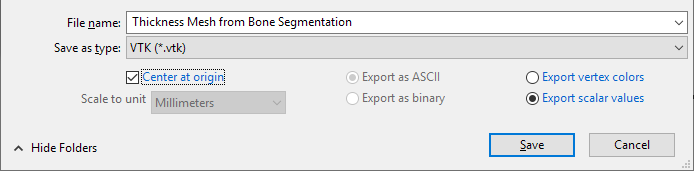
| Center at origin | If selected, the center of the exported file will be located in the origin. |
| Scale to unit* | Lets you provide the exported file with the unit scale to use. |
| Export as ASCII / Export as binary** |
Lets you choose to encode the file in either ASCII or binary. The main difference between these formats is that in a binary file numerical data is stored exactly as it is represented internally, which makes it much faster to read, and also more compact. In an ASCII file, each digit of the value is stored as a byte, and the bytes must be converted to a number before being stored. For example, a number like 1.247292 will occupy 8 bytes in ASCII, one byte for each digit, plus one for the decimal point. In binary it is stored as a native float value, which occupies only 4 bytes.
Note Although ASCII files tend to be larger than the equivalent binary file, but they may be a more suitable format for long-term archiving and reliable sharing. |
| Export vertex colors / Export scalar values*** |
Lets you choose to encode the vertex colors or scalar values for meshes with scalar values in the exported file.
Note Importing meshes exported with colors or scalar values is not supported by Dragonfly |
* Available for exporting in the STL (*.stl extension) file format only.
** Available for exporting meshes in the STL (*.stl) and PLY (*.ply extension) file formats only.
*** Available for exporting meshes with scalar values in the VTK (*.vtk extension) and VTL PolyData XML (*.vtp extension) file formats only.
- Right-click the required mesh in the Data Properties and Settings panel and then choose Export > Mesh to File in the pop-up menu.
- Select a File name and Save as type in the Save As dialog.
- Check the Center at origin box, if required.
- Do the following if you are exporting the mesh in the STL file format:
- Select a scale unit in the Scale to unit drop-down list, if required.
- Select the Export as ASCII or Export as binary option. You should note that although ASCII files tend to be larger than the equivalent binary file, they may be a more suitable format for long-term archiving and reliable sharing.
- Do the following if you are exporting the mesh in the PLY file format:
- Select the Export as ASCII or Export as binary option. You should note that although ASCII files tend to be larger than the equivalent binary file, they may be a more suitable format for long-term archiving and reliable sharing.
- Do the following if you are exporting the mesh in one of the VTK file formats:
- Select the Export vertex colors or Export scalar values option, as required.
- Click Save.
 Exporting Meshes in the Dragonfly Object File Format
You can export meshes in the Dragonfly Object (*.ORSObject extension) file format. Dragonfly Object files are proprietary binary formatted files in which data is written sequentially and XML (Extensible Markup Language) is appended after the binary data.
- Right-click the required mesh in the Data Properties and Settings panel and then choose Export > As ORSObject in the pop-up menu.
The Export to File dialog appears.
- Select a destination folder and file name in the Export to File dialog.
- Click the Save button.
Exporting Meshes With Colors
The option to export meshes with colors preserved is available for the VRML (*.wrl extension) file format.
- Right-click the required mesh in the Data Properties and Settings panel and then choose Export > Mesh to File with Color in the pop-up menu.
The Export to File dialog appears.
- Select a destination folder and file name in the Export to File dialog.
- Check the Center at origin box, if required.
- Select a scale unit in the Scale to unit drop-down list, if required.
- Choose the Export as ASCII or Export as binary option. You should note that although ASCII files tend to be larger than the equivalent binary file, they may be a more suitable format for long-term archiving and reliable sharing.
- Click the Save button.
